
How Do My Staff Set Availability If They Can Only Work Monday to Friday?
If an employee is only available to work Monday through Friday (and not weekends), you can control this easily using the Availability settings inside TimeWellScheduled.
There are two ways to approach this, depending on how you prefer to manage scheduling.
Option 1: Set “Not Available” for Weekends (Recommended)
This is the most common and cleanest method.
For the Employee:
- Go to AVAILABILITY.
- Find the Saturday to start on.
- Choose UNAVAILABLE.
- Set “Number of days” to 2
- Set “Repeat” to “Every week” and pick the number of weeks
- Click ADD
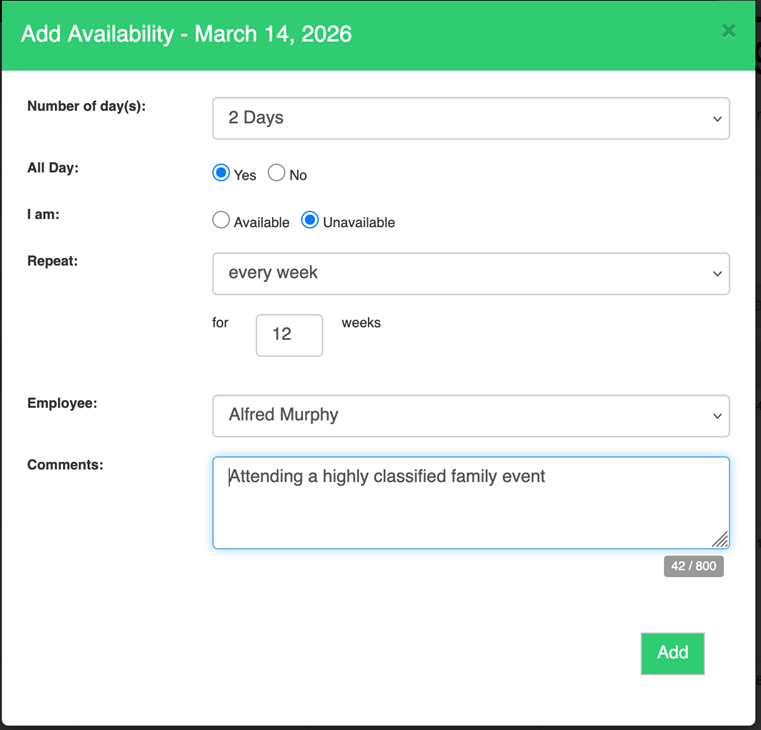
This tells the system the employee cannot be scheduled on weekends. When building the schedule, those days will be blocked from shift creation for that employee.
Option 2: Set “Available” for Weekdays Only
Alternatively, the employee can explicitly mark when they are available.
For the Employee:
- Go to AVAILABILITY.
- Find the Saturday to start on.
- Choose UNAVAILABLE.
- Set “Number of days” to 2
- Set “Repeat” to “Every week” and pick the number of weeks
- Click ADD
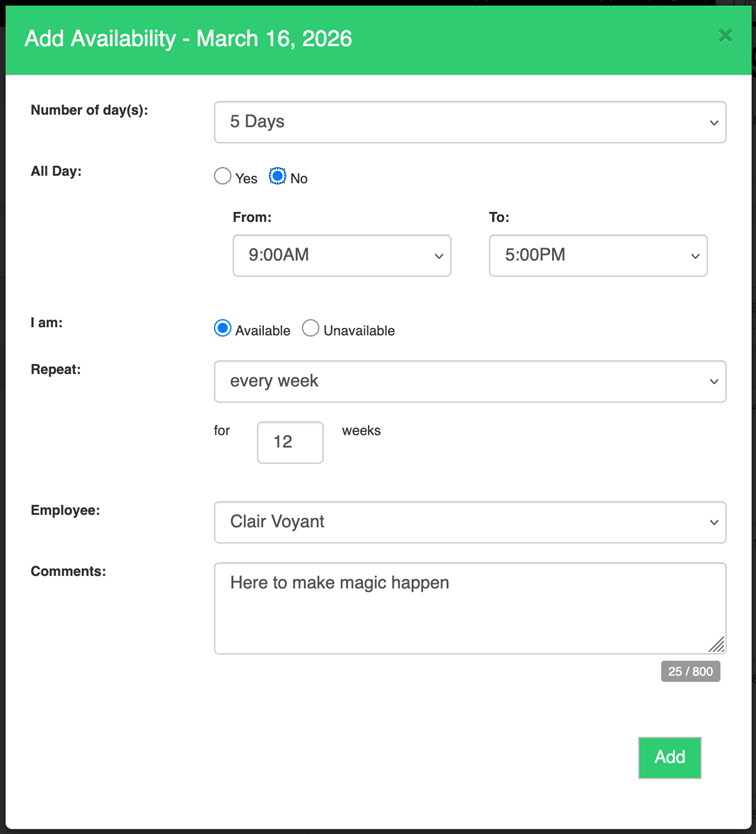
In this case, they will only be schedulable during the times listed (in this example 9a-5p).
Which Option Should You Use?
- If most staff work standard hours → Use Not Available for weekends.
- If staff have varying or limited hours → Use Available for specific times.
Both approaches work — it simply depends on how detailed you want your availability tracking to be.