
< All Topics
HR Suite – Add Notes Using Message Templates
Updated
Views27
Table of Contents
How to Add a Note Using a Message Template
1. Go to EMPLOYEES
2. Find the employee, click EDIT
3. Navigate to the NOTES tab
4. Click ADD A NEW NOTE

5. Click ADD FROM A MESSAGE TEMPLATE
6. Choose the template you want to use
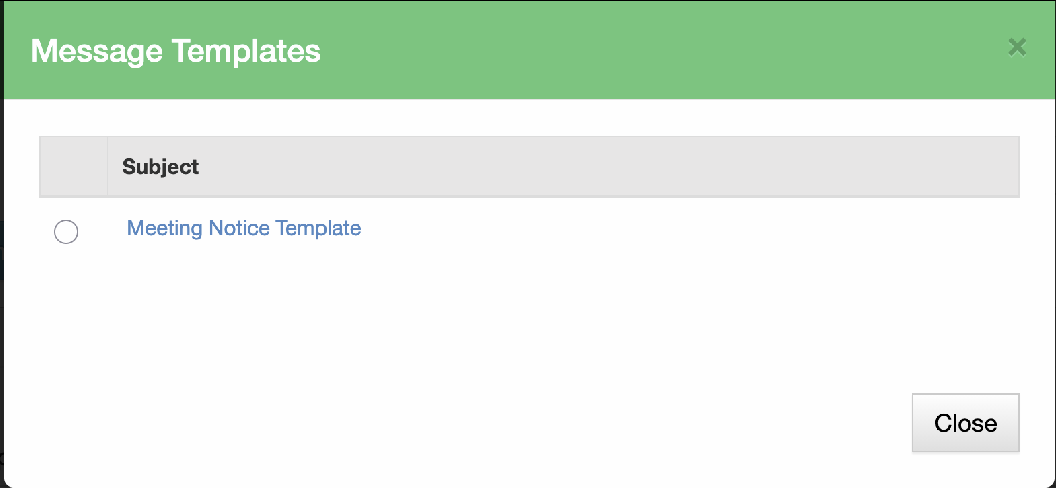
7. Make any small adjustments if needed
8. Save the note, click ADD
The selected template will automatically populate the note field, saving time and
ensuring consistency across your HR records.
- Why Use Message Templates?
- Save time when adding common HR notes
- Keep wording consistent across employees
- Reduce manual typing and errors
- Ideal for recurring notes (warnings, reviews, acknowledgements, follow-ups)
Managing Message Templates
Message templates are created and managed separately.
Learn how to create and manage Message Templates:
Search
Language switcher
Categories
-
Absence37
-
Access Restrictions9
-
Accounting5
-
Alerts30
-
App – Employees4
-
App – Punch Clock14
-
Availability13
-
Biometrics11
-
Chat6
-
Competency6
-
COVID7
-
Departments9
-
Did You Know5
-
Employee Management19
-
For Employees19
-
For Managers16
-
General29
-
Getting Started5
-
How-To17
-
HR Suite43
-
Messages21
-
Multiple Instances2
-
Offline Mode0
-
Payroll44
-
Printing3
-
Project Tracking5
-
Punch App2
-
Punch Clock2
-
Punching23
-
Reports21
-
Roles13
-
Scheduling78
-
Security23
-
Shifts9
-
Statutory Holidays12
-
Survey3
-
Time Cards60
-
Videos33
-
Vital Signs2
-
Walk Thru1
-
What's New57
-
Who's Working7