
< All Topics
Open Shifts – How to Assign / Take as an Employee
Updated
Views17
Table of Contents
As a Manager
- Go to SCHEDULING
- Go to the day containing the open shift.
- Click the → arrow on the open shift.
- Select the employee you want to assign the shift to – the shift will update immediately into that employee’s schedule.
As an Employee
From the Desktop:
- View your schedule.
- Find the open shift labeled UNASSIGNED – TAKE.
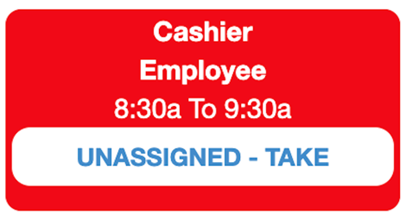
- Click TAKE to claim the shift.
From the Mobile App:
- Tap the Open Shifts icon from the main menu.

- Browse the list of available open shifts.

- Select the shift you want and tap TAKE to add it to your schedule.
Search
Language switcher
Categories
-
Absence37
-
Access Restrictions9
-
Accounting5
-
Alerts30
-
App – Employees4
-
App – Punch Clock14
-
Availability13
-
Biometrics11
-
Chat6
-
Competency6
-
COVID7
-
Departments9
-
Did You Know5
-
Employee Management19
-
For Employees19
-
For Managers16
-
General29
-
Getting Started5
-
How-To17
-
HR Suite43
-
Messages21
-
Multiple Instances2
-
Offline Mode0
-
Payroll44
-
Printing3
-
Project Tracking5
-
Punch App2
-
Punch Clock2
-
Punching23
-
Reports21
-
Roles13
-
Scheduling78
-
Security23
-
Shifts9
-
Statutory Holidays12
-
Survey3
-
Time Cards60
-
Videos33
-
Vital Signs2
-
Walk Thru1
-
What's New57
-
Who's Working7