
Shift Tasks/To-Do’s
Table of Contents
Shift tasks allow you to assign tasks to an employee’s shift and have the employee mark them completed.
Creating/Managing Shift Tasks
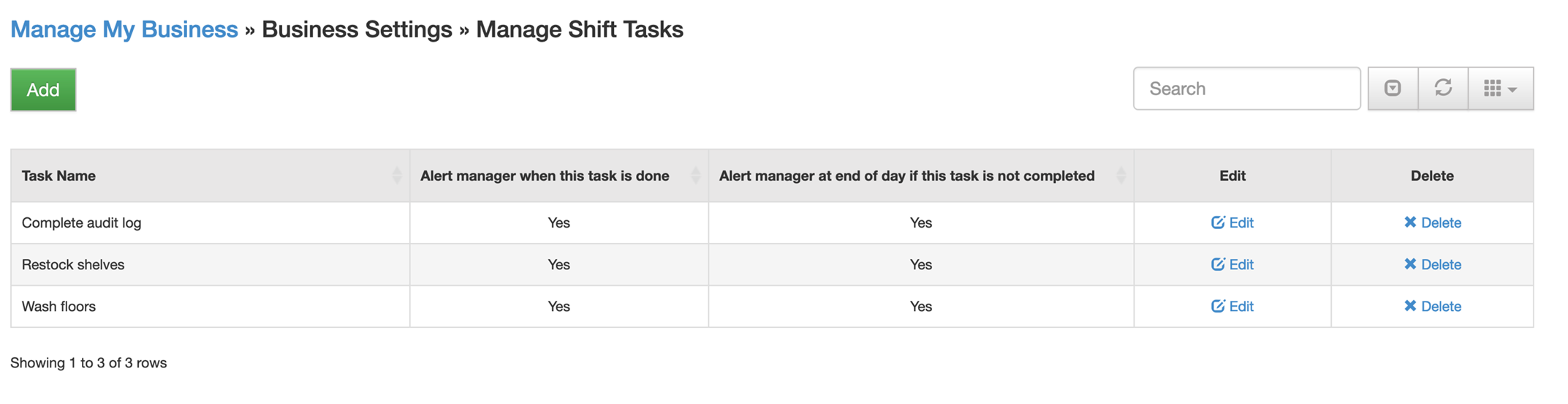
To create a task,
- Go to MANAGE MY BUSINESS
- Go to MANAGE SHIFT TASKS
- Click ADD or EDIT to make changes
You can also setup alerts for each task
Assigning Shift Tasks
There are 3 ways to assign shift tasks:
- When creating or editing a shift, on the right side you can check off the tasks to assign
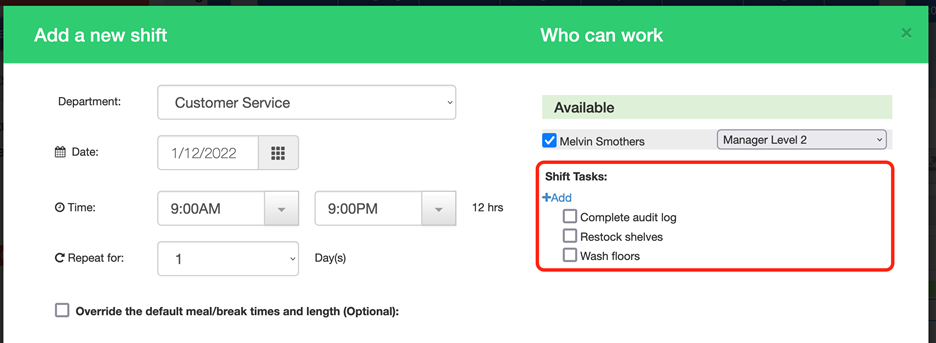
- When creating a TEMPLATE, you can check off the tasks to assign

- When create a TIMEBAND, you can check off the tasks to assign

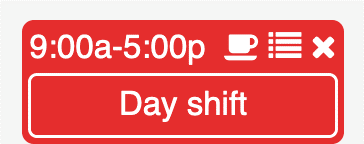
How Can I Tell A Shift Has Task(s)
When a shift has task(s) assigned, you will see the icon that looks like a list (middle icon here)
How Can I See What Tasks Were Completed?
To view a report on completed tasks
- Go to REPORTS
- Go to VIEW SHIFT TASK REPORT
- Enter your search criteria and run the report
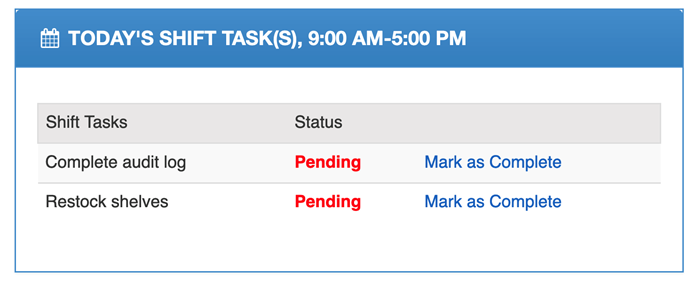
How Do Employees Mark A Task Complete on the Website?
Employees can mark a task complete by
- Visit timewellscheduled.com
- Go to EMPLOYEE LOGIN and log in
- On their dashboard, they will see their tasks for the day
- When a task is completed, they click MARK AS COMPLETE
How Do Employees Mark A Task Complete in the Employee App?
Employees can mark a task complete by
- Open the employee app
- Click the SHIFT TASKS icon

- Find the task, click the MARK AS COMPLETE link
