
Training – How do I create a new training group and assign employees?
Table of Contents
This article will show you how to create a new training group, add files and assign to employees so they can complete them.
Create Your Training Group
To create your training group:
- Go to MANAGE MY BUSINESS
- Go to TRAINING GROUPS
- Click ADD

Add Training Item – With A File
To add a training item that has a file for the employee to review/download
- Go to LIBRARY
- Expand the folder TRAINING/ONBOARDING MATERIALS
- Find the group you want to add the item too and click it

- Click NEW and select UPLOAD FILE

- On the form
- You can enter the name of the file (if uploading multiple files you can use the “The filename will be the file description” option)
- Drag the file(s) into the upload section
- OPTIONAL – if you want the employee to upload a document (ie. a signed form) check off the option to require an upload
- Click UPLOAD
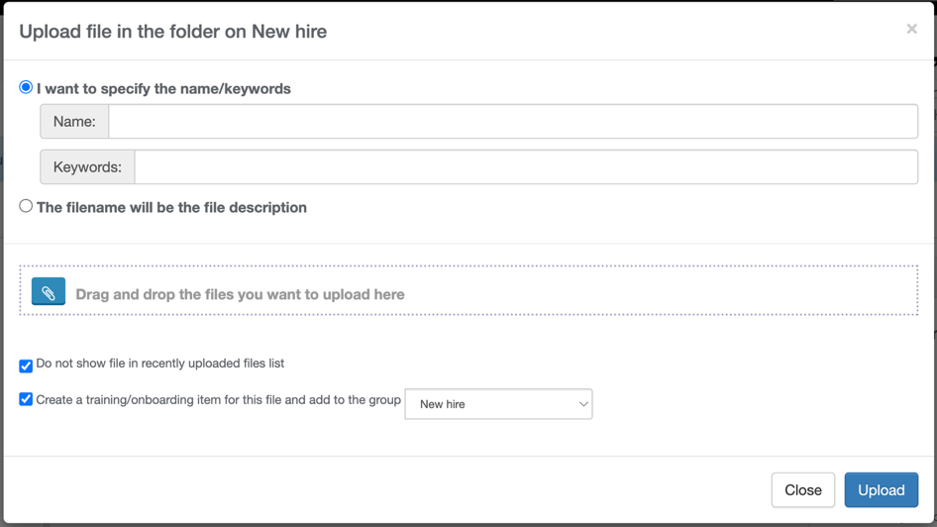
- Repeat for the other files
Add Training Item – Visit External Site
To add a training item that requires the employee to visit an external site (ex. WHMIS training)
- Go to MANAGE MY BUSINESS
- Go to MANAGE TRAINING ITEMS
- Click ADD
- Complete the form
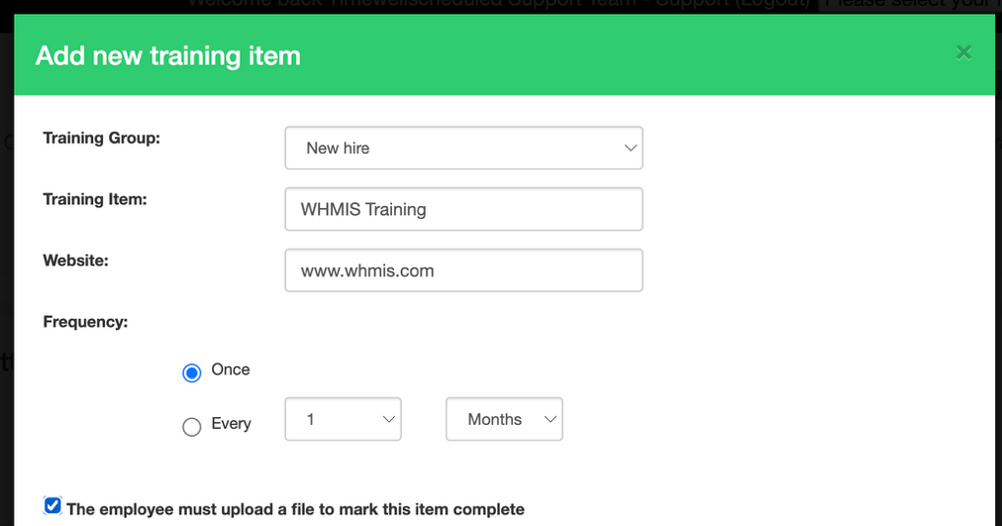
- Repeat for the other items
How Do I Assign A Group of Employee to a Training Group?
To assign multiple employees to a training group
- Go to MANAGE MY BUSINESS
- Go to MANAGE TRAINING GROUPS
- Find the training group, click ASSIGN

- Pick the employees or if you want all, select the checkbox at the top of the table

- OPTIONAL – You can enter the date to assign the item, by default it is today
- Click SAVE
How Do I Assign A Single Employee to a Training Group?
To assign an employee to a group
- Go to EMPLOYEES
- Find the employee, click EDIT
- Go to the TRAINING tab
- Click ASSIGN NEW TRAINING GROUP

- Pick the group, click ADD

How Do I See What Has/Hasn’t Been Completed
To see what is
- Overdue
- Coming due
- Not due
- Reviewed
You can see by
- Go to TRAINING
- Find the section, you will see the items for each employee listed

What Do Employees See?
When an employee logs in, on their dashboard they will see items to complete.

If the item just needs confirmation it’s reviewed, it will show like this

If the item requires a file uploaded back up, it will show like this

How Do I See Uploaded Files
To see the files uploaded in bulk,
- Go to TRAINING
- Go to the FILES tab
- You will see the files uploaded by all employees

To see the files uploaded by employee,
- Go to EMPLOYEES
- Find the employee, click EDIT
- Go to the TRAINING tab
- Find the item, click UPLOADED FILE