
< All Topics
How do I setup my punch options (code, app, biometrics, barcode)
Updated
Views177
Table of Contents
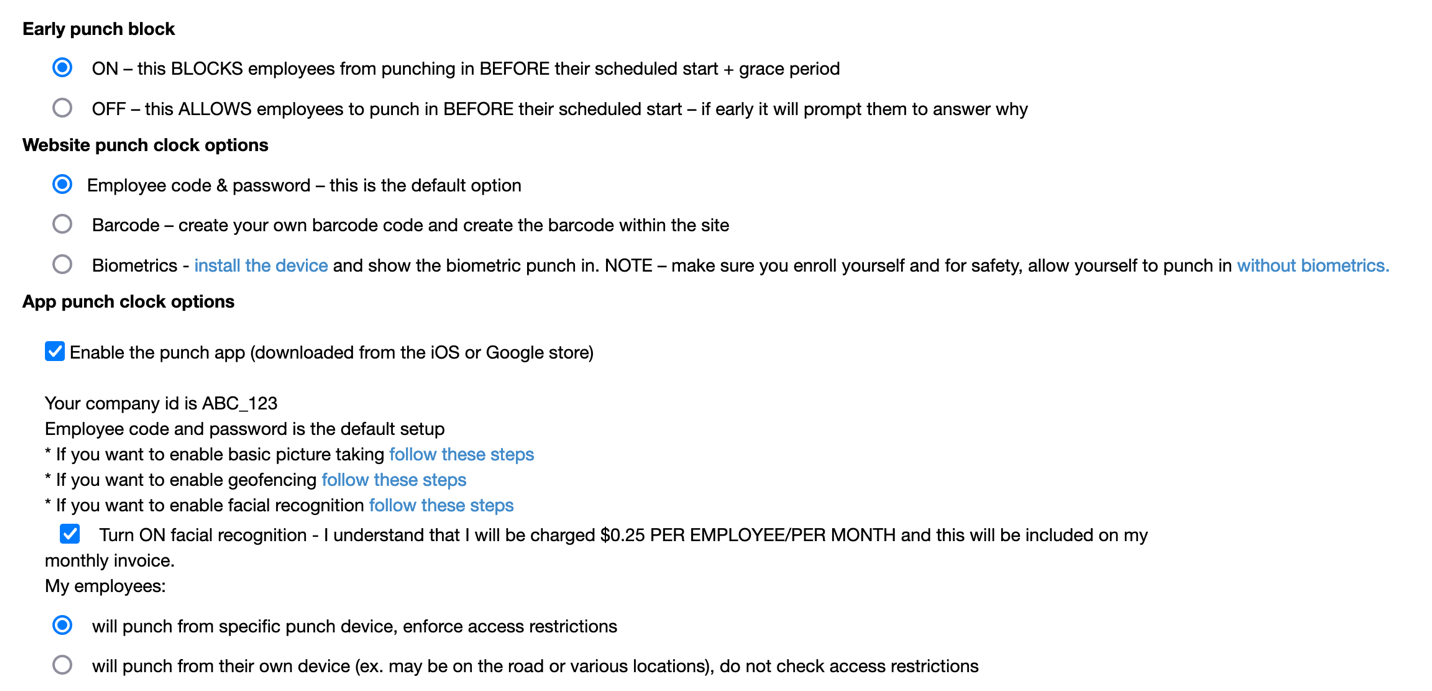
TimeWellScheduled supports multiple punch options:
- employee/payroll code & password (default)
- barcode
- you can generate a barcode in the system, requires a bar code reader you buy
- Setup instructions here
- biometrics
- you enroll employees with their fingerprint, requires you buy the device
- Setup instructions here
- using the app, there are 3 modes (NOTE – you must enable the punch app before you can use it)
- Basic – no pictures or facial recognition
- Take a photo – read more here
- Facial recognition – read more here
- Setup instructions here
To manage which method to use and the options within each,
- Go to MANAGE MY BUSINESS-
- Go to GENERAL SETTINGS
- Under the PUNCH CLOCK tab, change to a different punch method
Categories
-
Absence34
-
Access Restrictions9
-
Accounting5
-
Alerts29
-
App – Employees4
-
App – Punch Clock14
-
Availability13
-
Biometrics12
-
Chat6
-
Competency6
-
COVID7
-
Departments9
-
Did You Know5
-
Employee Management19
-
For Employees17
-
For Managers16
-
General28
-
Getting Started5
-
How-To20
-
HR Suite42
-
Messages21
-
Multiple Instances2
-
Offline Mode0
-
Payroll43
-
Printing4
-
Project Tracking5
-
Punch App2
-
Punch Clock2
-
Punching23
-
Reports21
-
Roles13
-
Scheduling76
-
Security23
-
Shifts9
-
Statutory Holidays7
-
Survey3
-
Time Cards60
-
Videos33
-
Vital Signs2
-
Walk Thru1
-
What's New55
-
Who's Working7